

BRAT Biped SEQ Tutorial v1.06XE
Biped BRAT SEQ Tutorial
Updated September 20, 2006
Safety first! Wear eye protection and never touch a powered robot!
Software: BRAT Projects — minibipd.zip
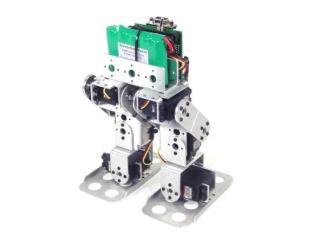
Biped BRAT.
Step 1: Install the SSC-32 Visual Sequencer and read its manual — this tutorial does not replace it. Connect the SSC-32 to the serial port and apply power. The green LED should light and stay on until it receives a valid serial command. Run the Sequencer program.
Step 2: Click "All=1.5mS" in the upper left corner to move all servos to mid-position. This is a quick check that the robot was constructed properly.
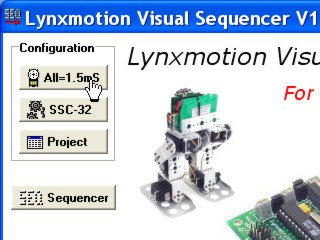 Figure 2.
Click the "Test" button.
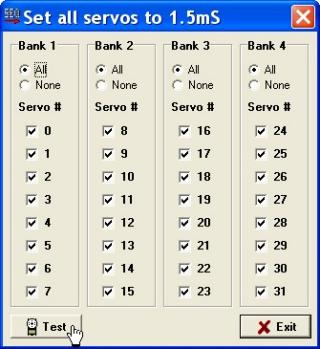 Figure 3.
Place the robot as close to neutral as possible. Click "Yes" — the robot should go to and hold the neutral position resembling Figures 4-2 and 4-3. If any joint is off by more than 15°, remove the servo horn, rotate to align, and reattach. Click "Stop" then "Exit" when done.
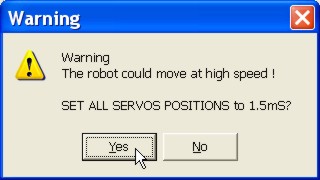 Figure 4-1 (Test screen).
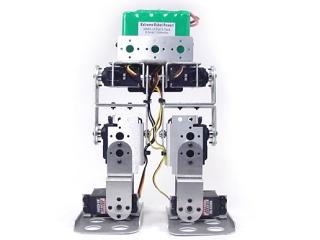 Figure 4-2 (front neutral).
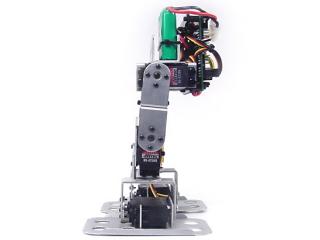 Figure 4-3 (side neutral).
Click "SSC-32" in the upper left corner. This process configures the software to the servos in your assembly — servo neutral, min, and max positions are defined and joint angles are entered. Take time to do an accurate configuration; sloppy configuration will result in a poorly performing robot when sharing projects.
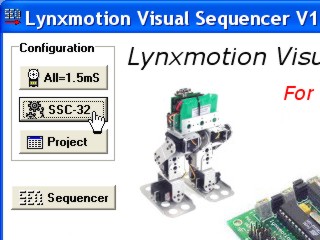 Figure 5.
Each servo must first be enabled by clicking its Enable checkbox. You can move the servo by adjusting its slider. Enable and configure servos one at a time.
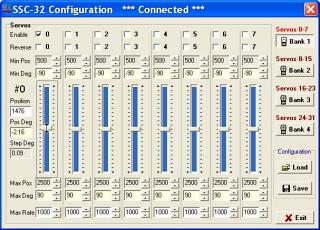 Figure 6.
Channel 0 is the BRAT's right ankle. Move the slider for servo 0 until the servo is at 90° as shown. The mouse scrollwheel or keyboard arrow keys can be used for fine adjustments.
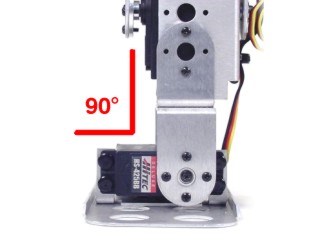 Figure 7.
Right-click on the slider and select "Set position as neutral (0°)". The Position box shows the actual servo pulse length in microseconds — useful for creating pulse offset tables for BASIC programming.
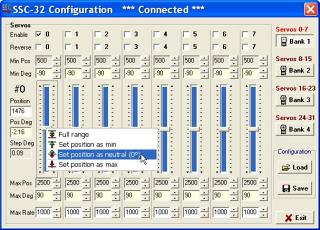 Figure 8.
Move the slider to 45° as shown in Figure 9-1. Right-click and select "Set position as min" (Figure 9-2). Adjust the "Min Deg" box to −45° (Figure 9-3).
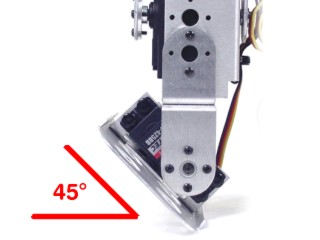 Figure 9-1.
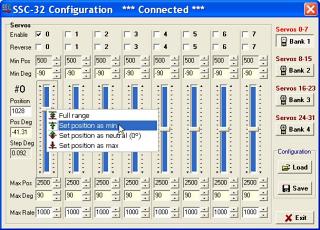 Figure 9-2 (set min).
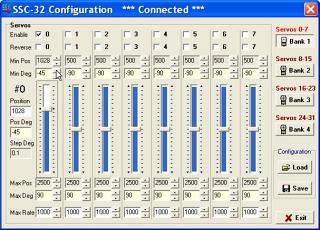 Figure 9-3 (−45° entered).
Move the slider to 84° as shown in Figure 10-1. Right-click and select "Set position as max" (Figure 10-2). Adjust "Max Deg" to 84° (Figure 10-3). Return the slider to 0° before proceeding to the next servo.
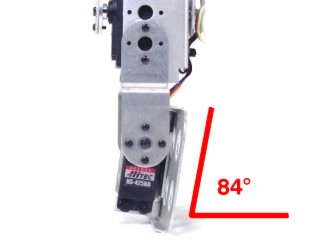 Figure 10-1.
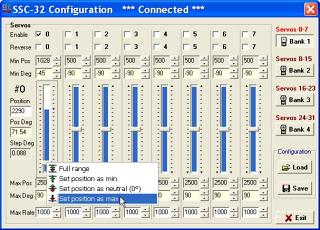 Figure 10-2 (set max).
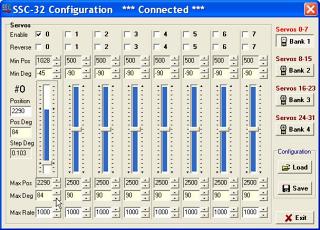 Figure 10-3 (84° entered).
Channel 1 is the right knee. Set neutral (0°) with the knee straight as in Figure 11-1. Set min and max as in Figures 11-2 and 11-3 — no angle adjustment needed as the knee can reach ±90°. Return slider to 0° before continuing.
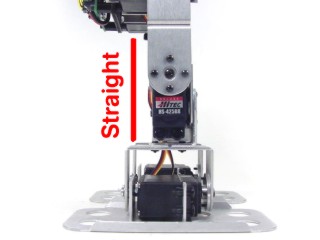 Figure 11-1 (neutral).
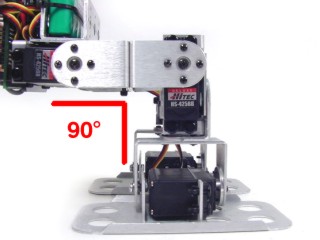 Figure 11-2 (min).
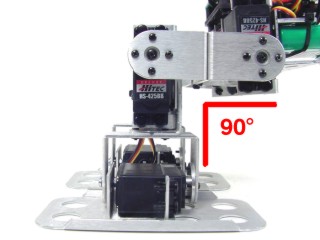 Figure 11-3 (max).
Channel 2 is the right hip. Set neutral (0°) as in Figure 12-1, min (−90°) as in Figure 12-2, and max (45°) as in Figure 12-3. Knees are bent in Figure 12-3 for clarity. Return slider to 0° before continuing.
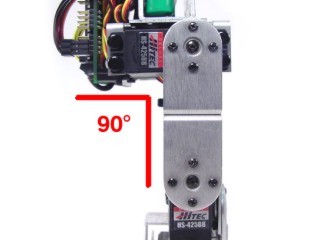 Figure 12-1 (neutral).
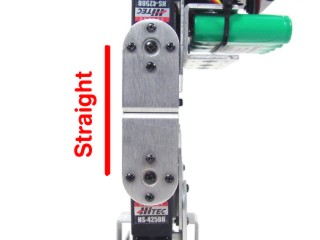 Figure 12-2 (min −90°).
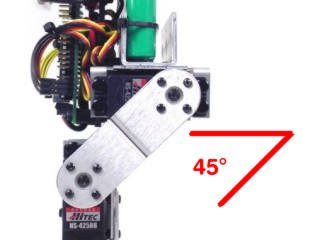 Figure 12-3 (max 45°).
Click "Bank 3" to access channels 16–23. Channel 16 = left ankle, 17 = left knee, 18 = left hip. Configure identically to channels 0–2, but check the "Reverse" checkbox for all three left-side channels when done.
Set all servos to 0° (home) and save. The .cfg file must be loaded each time you run the program. To save for one robot, overwrite "ConfigSSC32.cfg". For multiple robots, save as a new file (e.g. "BipedBRAT.cfg") in the install directory — default: C:\Program Files\Sequencer_SSC-32\
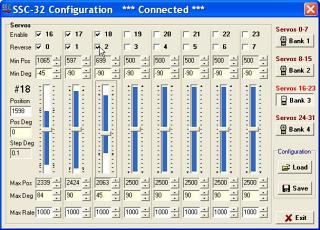 Figure 13.
Download minibipd.zip and unzip it into the SEQ install directory (default: C:\Program Files\Sequencer_SSC-32\). Click "Project" in the upper left corner.
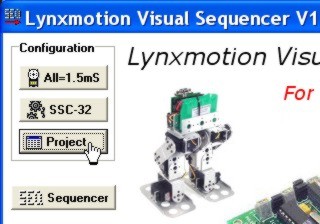 Figure 14.
Click "Import", select "biped6-long stride.csv", click "Open" then "OK". Enter a project name or leave the default and click "OK". You should see "Import success". Click "Exit".
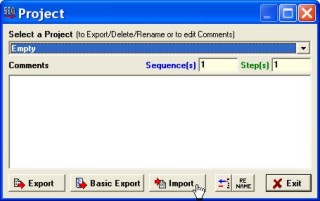 Figure 15.
Click "Sequencer" (Figure 16-1). Select "biped6-long stride" from the Project dropdown. In the Play menu, click "Project Loop" (Figure 16-3) — the robot will start moving immediately. Use the Stop or Pause buttons to halt. If both legs move in the same position, check that the left-side servos have the Reverse checkbox enabled.
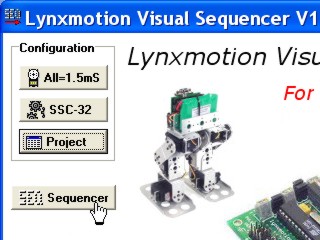 Figure 16-1.
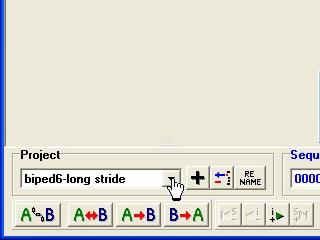 Figure 16-2.
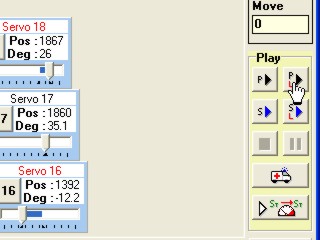 Figure 16-3.
Table 17 lists the projects included in the zip file with video links where available. After getting comfortable playing projects, consult the Sequencer manual to create your own.
Run the Sequencer program. Select "empty" from the Project dropdown and click the black "+" to create a new project. Enter a name such as "BRAT-Walk".
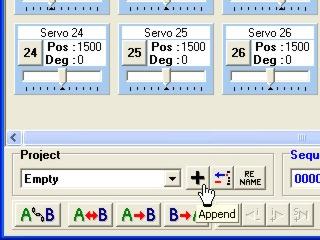 Figure 1.
Click "Swap" at the top to clear the screen (this swaps selected with unselected, clearing all since none are selected). Then click on the servos needed: 0, 1, 2, 16, 17, and 18.
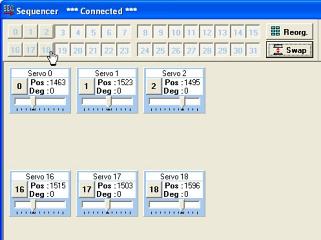 Figure 2.
Click and drag the servo boxes to arrange them to match the robot's physical layout.
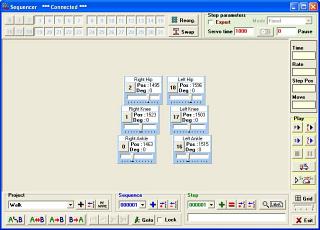 Figure 3.
Click on the number in a servo box to bring up a naming screen. You can rename the servo and change its box colour.
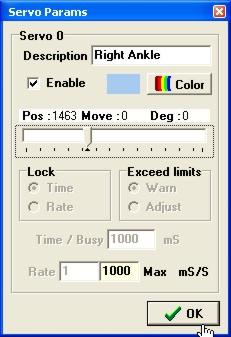 Figure 4.
The 4-step walking sequence outline is shown in Table 5. Steps 3 and 4 are mirror images of Steps 1 and 2.
| Step | Action |
|---|---|
| 1 | Shift weight to robot's right |
| 2 | Step forward |
| 3 | Shift weight to robot's left |
| 4 | Step forward |
Table 5.
Click the "A⟺B" button in the lower left corner. Link Servo 1 with Servo 17, and Servo 2 with Servo 18 (click each pair and click "Add"). This lets you swap left and right leg positions with a few clicks.
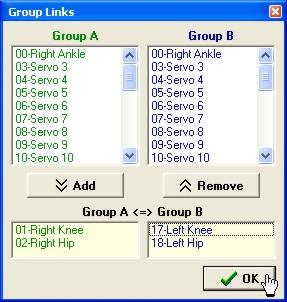 Figure 6.
Set servos to the degrees in Table 7 (approximate values are fine). When done, click the red "=" in the Step section to overwrite Step 1.
| Ch | Deg | Ch | Deg |
|---|---|---|---|
| 2 | −25 | 18 | 25 |
| 1 | −20 | 17 | 20 |
| 0 | −8 | 16 | 8 |
Table 7.
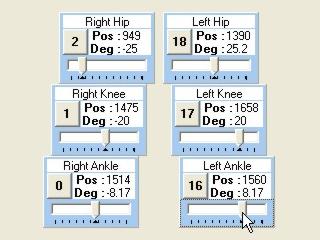 Figure 7.
Click "A⟺B", deselect the "Selected step" checkbox, and click OK. Then click the green "+" in the Step section to add the current position as a new step.
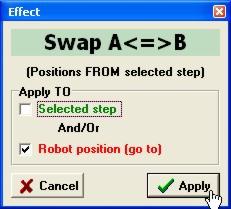 Figure 8.
To shift the robot's weight, swap the degrees for Servos 0 and 16 using the sliders. Click the green "+" in the Step section when done to add this as a new step.
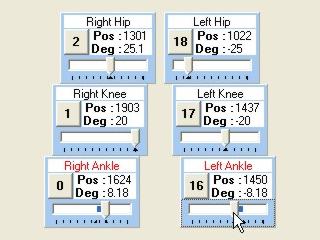 Figure 9.
Click "A⟺B" again, deselect "Selected step" if needed, and click OK. Click the green "+" to add the new position as Step 4.
Figure 10.
Click the sequence loop button under "Play" on the right side. Stop or pause from the Play menu. If the robot doesn't walk straight, try increasing the ankle degrees to shift more weight.
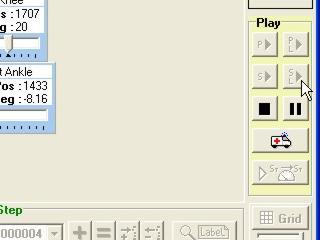 Figure 11.
Click the "Advanced Play" button on the right side of the screen to access speed controls.
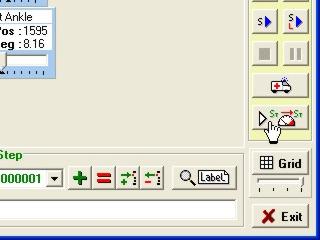 Figure 12.
The Time slider adjusts all servo speeds as a percentage of normal. 100% = normal speed; below 100% = faster; above 100% = slower. Click Loop to test, and tweak while the robot is moving to get it perfect. Click Apply to save the new speed to the project.
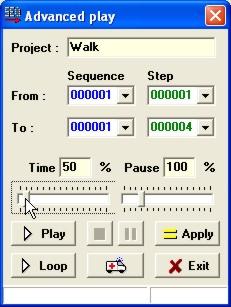 Figure 13.